
Canva Tutorial For Beginners - How to Design a Refreshing Fruit Juice Poster in Canva African Geek
Learn to design a vibrant fruit juice poster in Canva from scratch. Perfect for beginners ready to create eye-catching graphics with ease.
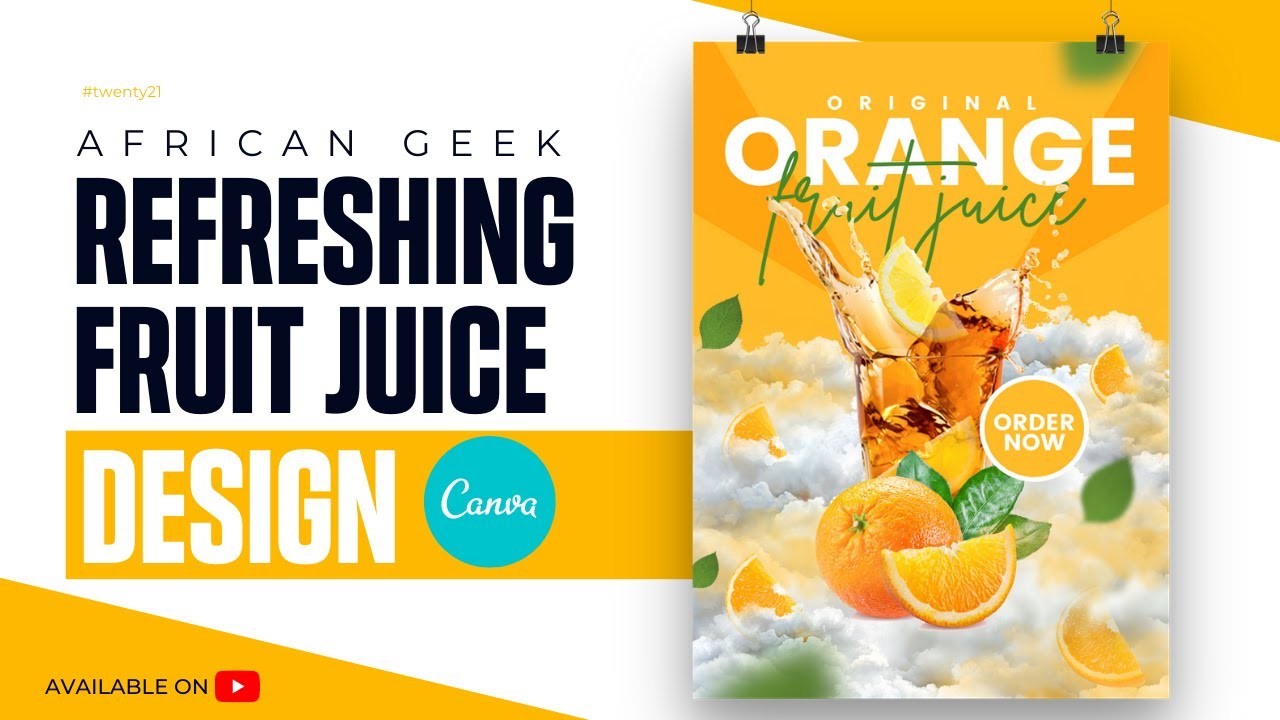
If you have ever walked past a restaurant or juice bar and stopped because a poster caught your eye, you already know the power of great food design. A well-crafted fruit juice poster does more than show a product — it makes people thirsty. It creates a craving. And in today's world, where small businesses in Accra, Lagos, Nairobi, and beyond are competing for attention both online and on the street, your visuals need to do serious work. The good news? You do not need a graphic design degree or expensive software to pull this off.
In this tutorial, Benjamin from African Geek walks you through designing a vibrant, refreshing fruit juice poster entirely in Canva's free version. That means no hidden costs, no complicated tools, just you, your creativity, and Canva doing the heavy lifting. Whether you are designing for a local juice bar, a smoothie brand, a food business social media post, or just leveling up your design skills, this tutorial gives you a practical, repeatable process you can use again and again.
By the end of this tutorial, you will have a professional-quality poster that looks like it came from a design agency — and you will know exactly how to customize it for any fruit, brand color, or business name. Let us get into it.
What You'll Learn
- How to set up the perfect poster canvas size in Canva for print and digital use
- How to build a bold, eye-catching background using shapes, gradients, and color blocking
- How to place and cut out fruit images to create a vivid, layered composition
- How to pair fonts effectively to balance a headline with supporting product details
- How to use Canva's free elements to add splashes, droplets, and texture for a refreshing feel
- How to export your finished poster in high resolution, ready for print or social media
Step-by-Step Breakdown
-
Set up your canvas. Open Canva and create a new design. For a poster, use the custom dimensions option and set it to 1080 x 1350 px for social media, or A3 (297 x 420 mm) if you are printing. Give your design a name so you can find it easily later.
-
Build your background. Choose a bold background color that evokes freshness — think deep greens, bright oranges, or vivid yellows. Go to the Elements panel, search for a rectangle, and drag it to cover the full canvas. Use the color picker to set your brand or fruit-inspired color. You can also split the background into two tones using two rectangles for a more dynamic look.
-
Add fruit images and cut-out elements. Go to the Elements tab and search for your fruit — for example, "orange slice", "mango", or "watermelon". Look for PNG elements with transparent backgrounds so they sit cleanly on your poster. Arrange them across the design, layering some behind text and others in front to create depth. Scale them up boldly — do not be shy with the fruit.
-
Add splash and texture effects. Search for "water splash", "liquid drop", or "juice splash" in the Elements panel. These free elements make your poster feel dynamic and refreshing. Place splashes near the fruit or around the edges to give the impression of a cold, just-poured drink. Adjust the color of these elements to match your palette.
-
Place your headline text. Click the Text panel and add a heading. Something like "FRESHLY SQUEEZED" or "100% NATURAL JUICE" works well. Choose a thick, bold font — Canva fonts like Anton, Bebas Neue, or Black Han Sans are excellent here. Make the headline large and high-contrast so it reads instantly from a distance.
-
Add supporting details and a tagline. Below your headline, add a shorter subtext with the product name, flavor, or a short tagline like "Made Fresh Daily" or "No Sugar Added." Use a lighter or script font to contrast with the bold headline. This is also where you add your business name, logo, or handle if you have one.
-
Polish and export. Step back and review your poster. Check that colors are consistent, text is readable, and the fruit feels balanced across the layout. Adjust spacing and sizing as needed. When you are happy, click Share, then Download, and choose PNG (for digital) or PDF Print (for high-quality printing). Your poster is ready.
Pro Tips from Benjamin
-
Use odd numbers for fruit placement. Groupings of 3 or 5 fruit elements look more natural and dynamic than evenly paired arrangements. It gives your poster an organic, energetic feel that flat symmetry cannot match.
-
Contrast is your best friend. If your background is a warm color like orange or yellow, make your text white or very dark green. Poor contrast is the number one reason designs look amateur — high contrast makes everything instantly more professional and readable.
-
Save a master template for reuse. Once your poster layout is solid, duplicate the design in Canva and swap out the fruit, colors, and text for a different flavor. You now have a full product poster series in a fraction of the time. This is how professional designers work efficiently for clients.
Key Takeaways
- A great food poster is about emotion first — your design should make someone feel thirsty or hungry before they even read the text
- Canva's free version has everything you need to create professional, print-ready posters without spending a single cedi or naira
- Layering fruit images, splash elements, and bold typography together is what separates a flat design from a design that stops people in their tracks
- Once you build one strong poster template, you can repurpose it across flavors, seasons, and promotions with minimal extra work
Ready to build a consistent brand identity for your food or beverage business? Start by locking in your colors, fonts, and logo in one place.
🛠 Free tools for this topic
Sponsored
Try Canva Pro free for 30 days
No credit card needed · Cancel anytime · Affiliate link
You might also like


Benjamin T. Minnow
Creator of African Geek · 139K+ subscribers · Accra, Ghana
Share this post