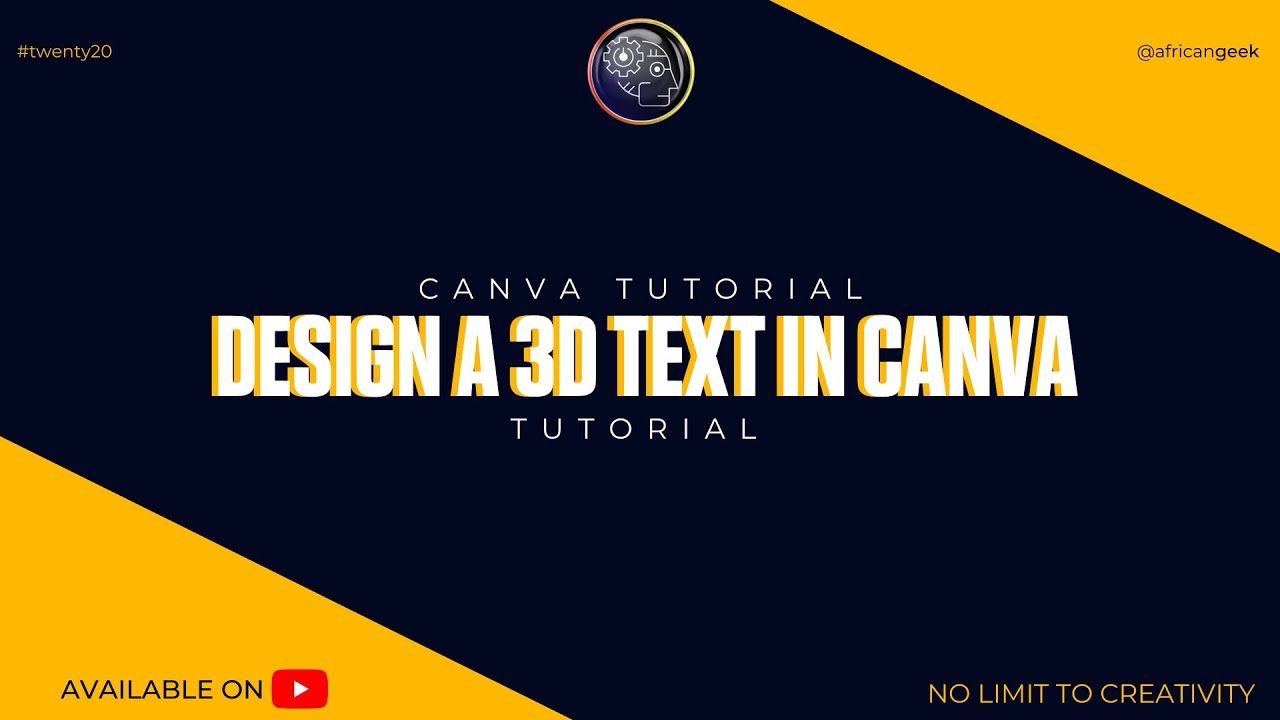
Most Canva users are leaving speed on the table. They drag, drop, and click their way through every design — not knowing that a few habits can cut their design time in half. Here are 10 tips that every creator, freelancer, and small business owner should know.
1. Learn the keyboard shortcuts
Canva has over 100 shortcuts built in. The most useful ones: T for text, R for rectangle, C for circle, L for line, and Ctrl+D to duplicate an element. These alone save minutes per design.
2. Use the Brand Kit
If you design for a brand (yours or a client's), set up a Brand Kit with your exact colours, fonts, and logos. You'll never hunt for a hex code again — just click.
3. Copy style with the Format Painter
Select an element with the style you want, right-click, and choose "Copy style". Then select any other element and paste. One click to match typography, colour, and spacing perfectly.
4. Lock your background
Once your background is set, right-click and lock it. Now you can click anywhere on the canvas without accidentally moving it. Game changer.
5. Use grids and frames for photo layouts
Drag a photo directly into a frame or grid slot — Canva will clip it automatically. No more wrestling with overlapping images.
6. Align with smart guides
Hold Shift while moving elements to keep them on a straight line. Or use Canva's Position panel (top right) to align multiple elements at once with a single click.
7. Group everything
When a section is done, select all elements in it and press Ctrl+G to group them. Move, resize, and copy entire sections without losing alignment.
8. Use the search bar in elements
Instead of scrolling through thousands of stickers and shapes, type exactly what you need. "yellow arrow", "Africa map", "brush stroke" — you'll find it in seconds.
9. Save your own templates
Designed something great? Duplicate it, delete the specific content, and save it as a template. Next time, start from your own base instead of scratch.
10. Turn on ruler and guides
View → Rulers & Guides. Drop guides at your margins and key positions. Your designs will look aligned and professional every single time.
Master these 10, and you'll design faster than most professionals. Want the full list of 100+ shortcuts in one printable sheet? Download the free Canva Shortcuts Cheatbook below.