
Canva tutorial for beginners - How to design an office flyer in Canva
Learn to design a professional office flyer from scratch in Canva. This beginner-friendly tutorial covers templates, fonts, colors, and export tips.
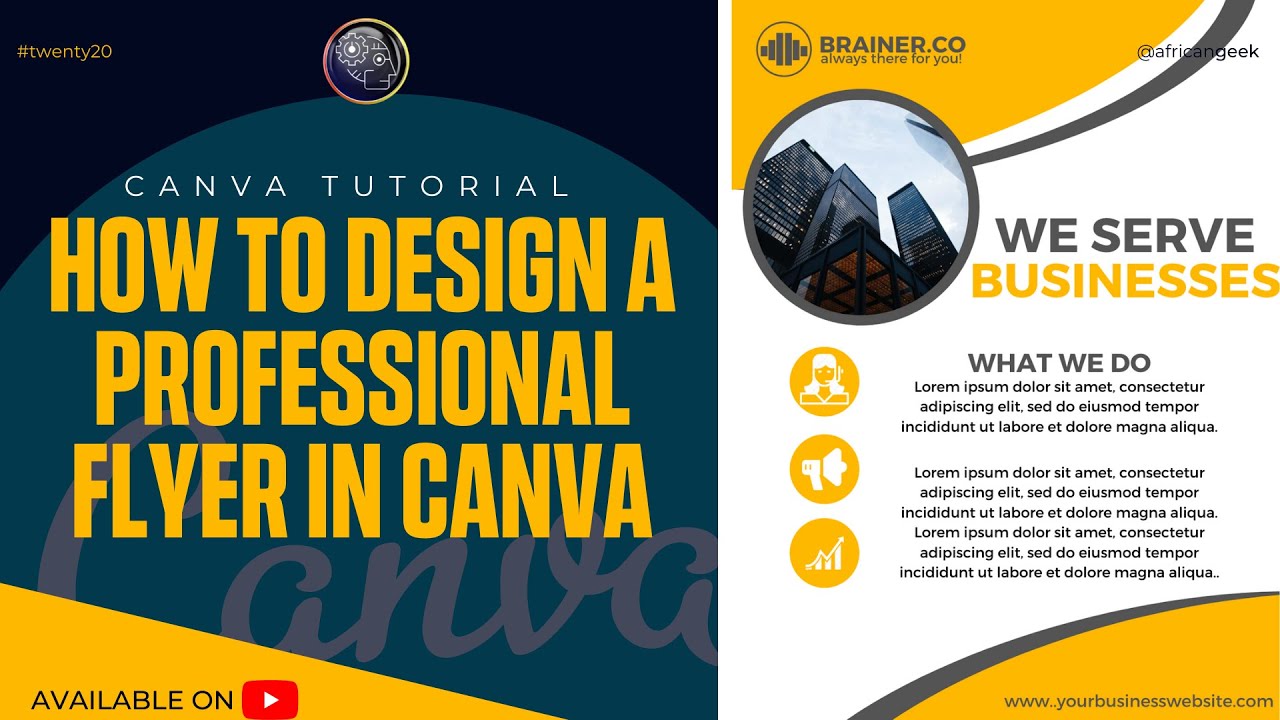
If you've ever needed to put together a professional flyer for an office event, workshop, or corporate announcement — and you didn't know where to start — this tutorial is exactly what you need. Benjamin walks you through the entire process of designing a polished office flyer in Canva from scratch, even if you've never opened Canva before. No design degree required, no expensive software, just your browser and a free Canva account.
Office flyers are one of those designs that look complicated but are surprisingly straightforward once you understand the building blocks: layout, typography, color, and hierarchy. In this beginner-friendly tutorial, you'll see how to combine all of those elements into a clean, professional result that you'd be proud to print out or share digitally. Whether you're designing for your company, your school, or a client, the skills you pick up here will carry over to virtually every other design you create.
What makes this tutorial especially useful is that Benjamin packs it with practical tips and tricks you can apply beyond just this one flyer. Stick with it to the end — there are some genuinely clever techniques hidden in the second half that will level up your entire Canva workflow.
What You'll Learn
- How to set up a custom flyer canvas with the right dimensions for print or digital use
- How to choose and apply a background that looks professional and clean
- How to work with text hierarchy — headlines, subheadings, and body copy — so your flyer is easy to read at a glance
- How to use Canva's built-in elements and shapes to add structure and visual interest to your layout
- How to pick a color palette that feels cohesive and on-brand
- How to download your finished flyer in the right format for printing or sharing online
Step-by-Step Breakdown
-
Set up your canvas. Open Canva and select "Custom Size" to create your flyer. For a standard office flyer, use A4 (210 x 297mm) if you're printing, or 1080 x 1920px for a digital version. Name your design so it's easy to find later.
-
Choose and apply your background. Start with a solid color background or a subtle gradient that fits the mood of your event. Click the background area, hit the color picker, and experiment. For office flyers, neutral tones like white, navy, charcoal, or a brand color tend to work best. You can also drag a rectangle element across the full canvas for more control.
-
Add a strong headline. Click the "Text" tab and add a heading. This should be the most important piece of information — the event name or the core message. Make it large, bold, and easy to read from a distance. Benjamin recommends keeping your headline to five words or fewer where possible.
-
Build out your text hierarchy. Below your headline, add a subheading with supporting details — the date, time, and location. Then add a smaller body text block for any extra information. Resize each text layer so there's a clear visual difference between them. This guides the reader's eye naturally down the page.
-
Add shapes and design elements. Use Canva's Elements panel to pull in lines, rectangles, or icons that help organize the layout. A colored bar behind your headline, a divider line between sections, or a simple icon next to your venue details can make the design feel intentional and complete rather than just text on a blank page.
-
Apply a consistent color palette. Select all your text and element colors and make sure they work together. Stick to two or three colors maximum — your background color, your primary accent color, and white or black for readability. Use the color picker to match your company or brand colors exactly using a hex code.
-
Download in the right format. Once you're happy with the design, hit the "Share" button and select "Download." For print, choose PDF Print. For digital sharing via email or WhatsApp, PNG at standard quality is perfect. If you're sending it to a professional printer, tick the "Crop marks and bleed" option.
Pro Tips from Benjamin
-
Lock your background layer. Once your background is set, right-click the element and select "Lock." This prevents you from accidentally moving it while you're working on the layers above — a small habit that saves a lot of frustration.
-
Use Canva's alignment tools religiously. Select multiple elements, then use the Arrange panel to align them to the center or distribute them evenly. Designs that look "off" are almost always suffering from poor alignment. This one trick alone will make your flyers look twice as professional.
-
Duplicate and iterate, don't edit the original. Before you start making big changes to your layout, duplicate the page first (right-click the page thumbnail and hit "Duplicate Page"). That way you always have a saved version to fall back on if a new idea doesn't work out.
Key Takeaways
- A great office flyer comes down to clear hierarchy: your reader should know the most important information within two seconds of looking at it
- Canva's built-in elements and shapes are powerful layout tools — don't just rely on text alone to fill your canvas
- Consistency in colors and fonts is what separates a professional-looking design from a messy one; less is always more
- Once you know how to build one flyer, you can apply the exact same process to brochures, posters, event programs, and beyond
Ready to take your designs further? If you're working with clients or planning events for a business, having a solid brief process makes every design project smoother from the start.
🛠 Free tools for this topic
Sponsored
Try Canva Pro free for 30 days
No credit card needed · Cancel anytime · Affiliate link
You might also like


Benjamin T. Minnow
Creator of African Geek · 139K+ subscribers · Accra, Ghana
Share this post