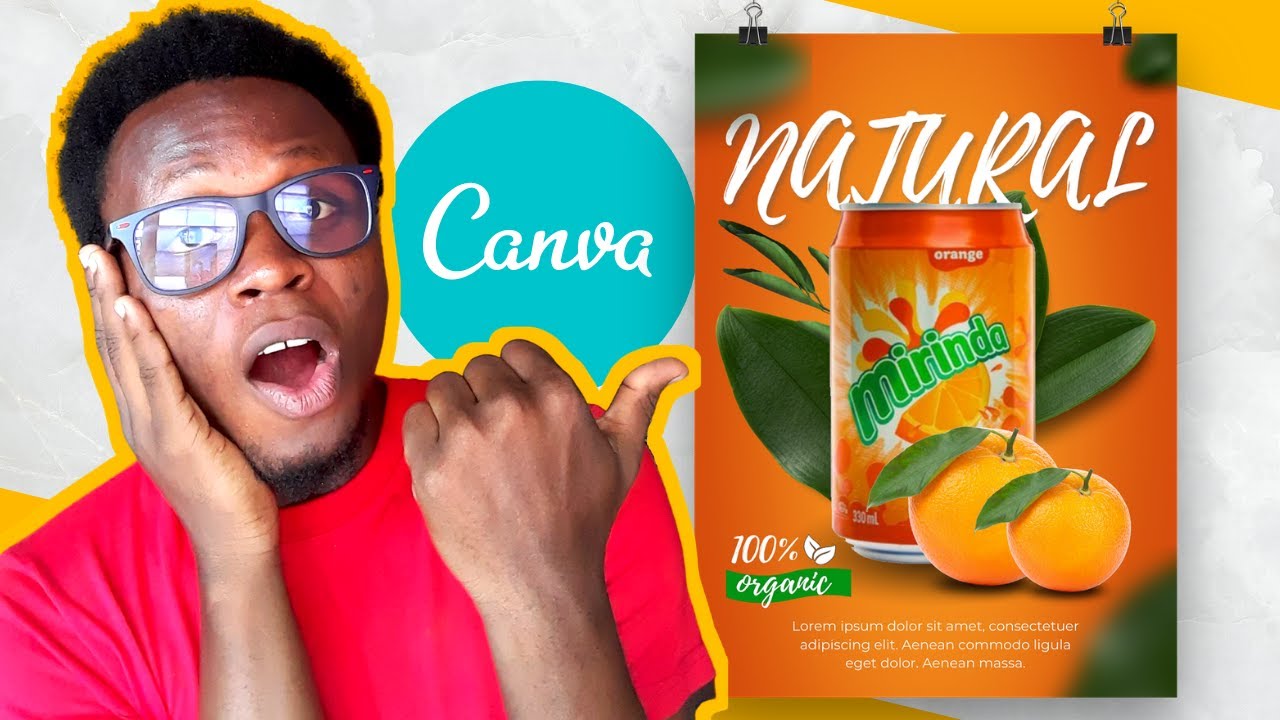
If you are a small business owner, a market vendor going digital, or just someone who wants their product to look as good as it actually is — this tutorial is for you. One of the fastest ways to build trust with potential buyers online is through a well-designed product poster. It tells your audience that you take your business seriously, that your product is quality, and that you are a brand worth paying attention to. Benjamin from African Geek breaks down exactly how to create an attractive product design poster in Canva, using only the free version — no expensive software, no design degree required.
This tutorial is one of the most practical ones on the channel because product posters are something you can use immediately. Whether you are selling skincare, food, fashion, tech accessories, or any physical product, a clean poster can be the difference between a scroll-past and a sale. Benjamin walks you through the exact tips and tricks he personally uses to make designs that look professional and polished straight out of Canva.
The best part? Every technique shown works on Canva Free. You do not need Canva Pro to follow along or get great results. By the end of this tutorial, you will have a product poster you are proud to post on Instagram, WhatsApp, or any social platform your customers are on.
Advertisement
What You'll Learn
- How to set up a product poster canvas with the right dimensions for social media
- How to use Canva's background tools and color blocking to make your product pop
- How to position and remove the background from a product image for a clean, professional look
- How to combine fonts effectively to create visual hierarchy in your poster
- How to use shapes and design elements to add depth and style without clutter
- How to apply finishing touches that make a free Canva design look like it came from a professional studio
Step-by-Step Breakdown
-
Set up your canvas. Open Canva and create a new design. For a product poster, a square format (1080 x 1080 px) works well for Instagram, or use 1080 x 1920 px for a story or WhatsApp status. Name your design so you can find it easily later.
-
Choose and apply your background. Pick a solid color or a simple gradient that complements your product. Avoid busy backgrounds — your product needs to be the hero of the design. Use the color picker to pull a shade directly from your product image for a cohesive look.
-
Upload and place your product image. Click on Uploads and add your product photo. Once placed, resize and position it so it sits naturally on the canvas. If your photo has a messy background, use Canva's Background Remover (available on free via workarounds, or Pro) — alternatively, shoot your product on a plain white or neutral surface to avoid this issue entirely.
-
Add shapes and design elements. Use rectangles, circles, or lines from the Elements panel to frame your product or create visual sections on the poster. A semi-transparent shape behind the text block keeps things readable without hiding your background. Experiment with layering — send elements forward or backward to get the right stacking order.
-
Write and style your text. Add your product name as the headline using a bold, eye-catching font. Use a smaller, lighter font for the supporting details like a tagline, price, or call to action. Stick to two fonts maximum — one for headings and one for body text. Adjust letter spacing and line height for a clean, airy feel.
-
Fine-tune colors and alignment. Make sure your text colors contrast well against the background so everything is readable at a glance. Use Canva's alignment tools (the ruler and position panel) to center elements properly. Symmetry and balance make a huge difference in how professional a poster looks.
-
Download and export. Once you are happy with the design, click Share then Download. Choose PNG for the best quality, especially if the poster includes a product image. Your file is ready to post directly to social media or send to print.
Pro Tips from Benjamin
-
Use your brand colors consistently. Every product poster you make should feel like it belongs to the same family. Set your brand colors in Canva's Brand Kit (or save a custom palette manually on Free) so you are not picking colors from scratch every time. Consistency builds brand recognition faster than any ad spend.
-
Let white space do the heavy lifting. A common mistake is filling every corner of the poster with text or elements. Empty space is not wasted space — it guides the eye toward what matters most, which is your product. If your poster feels busy, start removing elements rather than adding more.
-
Match your font mood to your product. A luxury skincare brand calls for a thin serif or elegant script. A bold snack brand needs something thick and energetic. Before you choose a font, ask yourself what feeling you want the customer to have when they see your product. Let that guide every design decision.
Key Takeaways
- A great product poster does not require expensive tools — Canva Free gives you everything you need to create designs that convert browsers into buyers
- Clean backgrounds, strong contrast, and intentional font pairing are the three pillars of a professional-looking product poster
- Consistency across your product visuals builds brand trust, which is one of the most valuable things a small business can have online
- Use Canva templates as a starting point, then customize them to match your brand so your designs never look generic
Advertisement